Mission Center, the modern popular Linux system monitor application, released new 1.2.0 version one day ago.
The new version of this free open-source Rust written and GTK4/LibAdwaita based application finally added monitoring support for laptop battery.
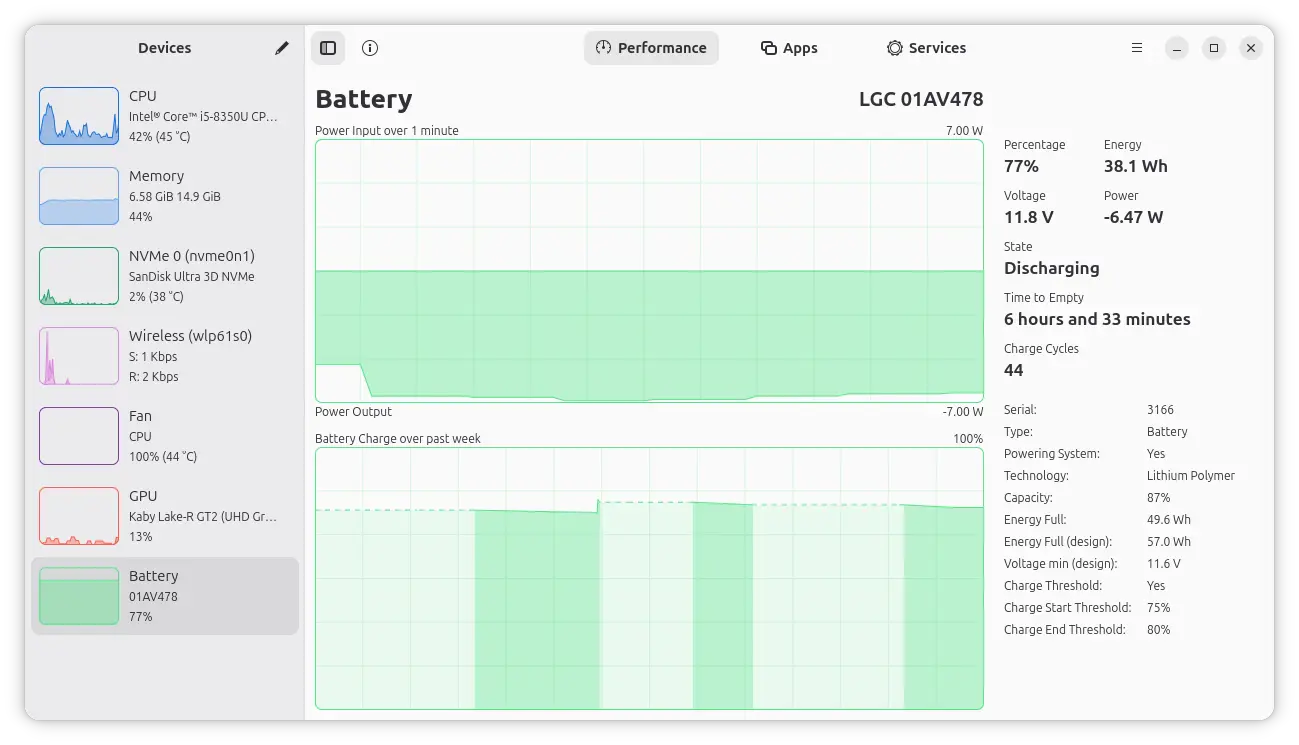
It now displays a battery page in the Performance tab, drawing the graphs for battery input and output in real-time, as well as the battery charge info over the past week.
And, it displays current battery percentage, health, energy in Wh, charge circle, and other information such as capacity, voltage, and charge threshold.
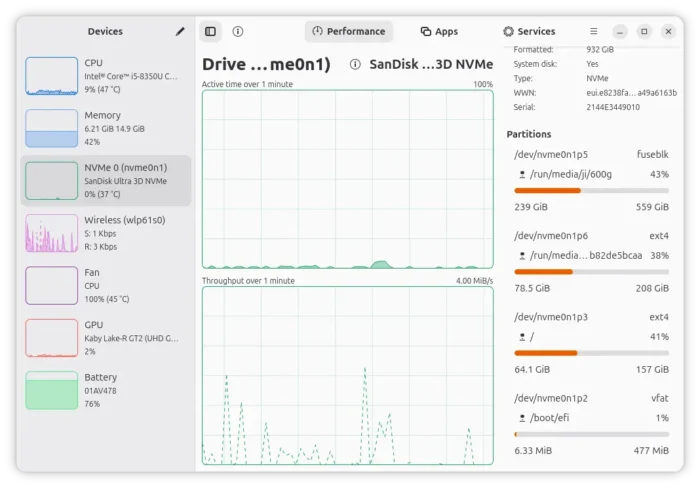
The disk storage monitoring page has been updated with per-partition usage details information, allowing to take quick a glance at how much disk space is used for all the volumes.
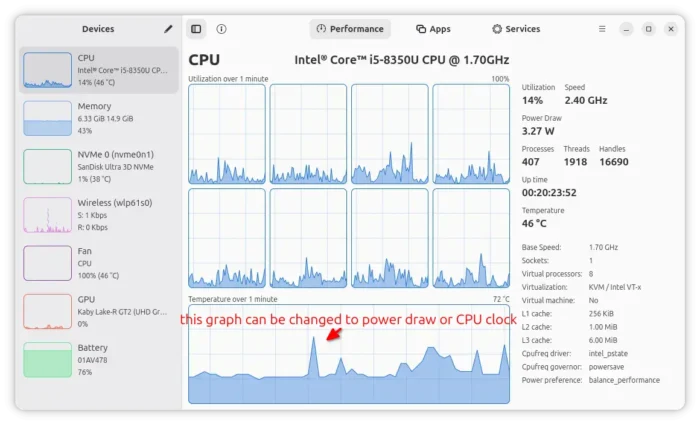
And, the CPU page now includes a new temperature graph in bottom, which can be changed to power draw graph or CPU frequency graph via right-click menu.
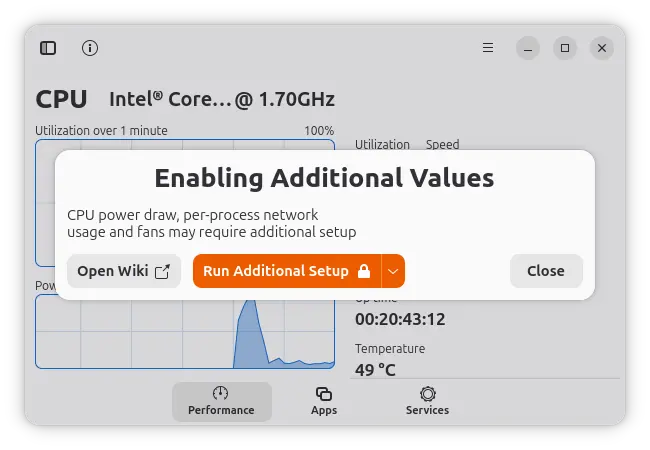
At the first run, the app will show a dialog asking for additional setup for CPU power draw, per-process network usage, and lm-sensors setup. User can re-launch the dialog at any time from the hamburger menu and revert the setup.
Other UI changes in the release include ability to change what to draw in the middle graph in GPU page, display zram or zswap memory compression statistics in the Memory page, per-process swap usage instead of shared memory in Apps tab, and option (in Preferences) to gray out zero values in the Apps page.
Mission Center 1.2.0 also improved the graph drawing backend for smoother rendering and animations, and less stuttering on application startup.
It as well updated Snap package to use core24, and updated AppImage to use quick-sharun instead of FUSE file system.
Other changes include:
- Update to GNOME 50 Platform.
- Hold Ctrl to pause UI refreshes.
- Allow sending process signals (requires pkexec).
- Add
--app-id/-aCLI option to start app with custom App ID. - Show total GPU memory on the graph when GTT not available.
- Add visual indicator when CPU speed falls back to BogoMIPS.
- New keyboard shortcuts.
- More about information.
There are as well various bug-fixes and other changes. See the wiki page for details.
How to Install Mission Center
Mission Center is available to install through AppImage, Flatpak, and Snap package. All the 3 are universal package formats that work in most Linux Distributions.
Ubuntu user may search & install the the Snap package from App Center (or Ubuntu Software), Fedora & Linux Mint can choose install the Flatpak package from either GNOME Software or Software Manager,
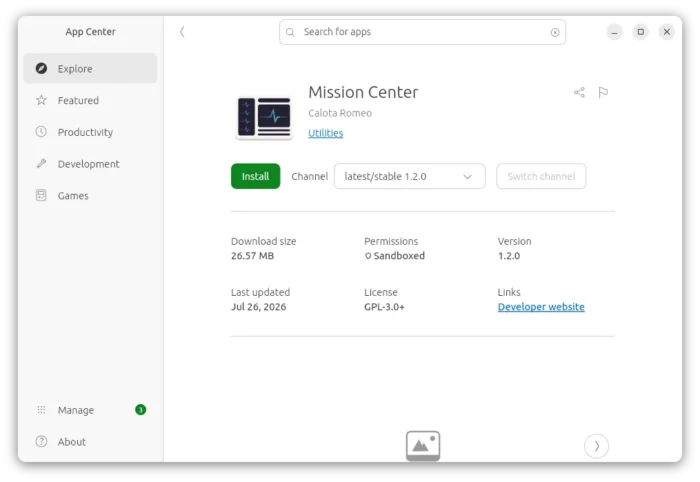
Mission Center snap package in Ubuntu App Center
If you don’t want to install it in your system, simply select download the AppImage, add executable permission (from its Properties) finally run it to launch the system monitor app.
source https://ubuntuhandbook.org/index.php/2026/07/mission-center-1-2-0-released-with-battery-monitoring/


Tidak ada komentar:
Posting Komentar