Want to set a video as animated background for your lock screen? Here’s an extension to do the job for GNOME.
For Linux desktop, there’s a free open-source python app to set video wallpaper. Now there’s a new app to do the job for the lock screen, though only for Gnome.
This is implemented by Live Lock Screen, an extension that uses GStreamer 1.0 media framework to play any video in your computer as lock screen background.
It also features infinite looping support, optional audio, multi-monitor support, pause/play on suspend and wake, as well as adjustable frame rate and blur effect.
1. Install Live Lock Screen
The extension so far supports GNOME from version 47 to 50, meaning for Ubuntu 25.10/26.04, Fedora 41 ~ 44, and other Linux with recent GNOME. While, Gnome 46 (Ubuntu 24.04) is also supported via manually installation.
1. Install dependencies. First, press Ctrl+Alt+T on keyboard to open terminal and run command to install the gstreamer plugins:
sudo apt install gstreamer1.0-plugins-good gstreamer1.0-plugins-bad gstreamer1.0-plugins-ugly
Also install the gstreamer plugin for GTK-4 sink elements by running command:
sudo apt install gstreamer1.0-gtk4
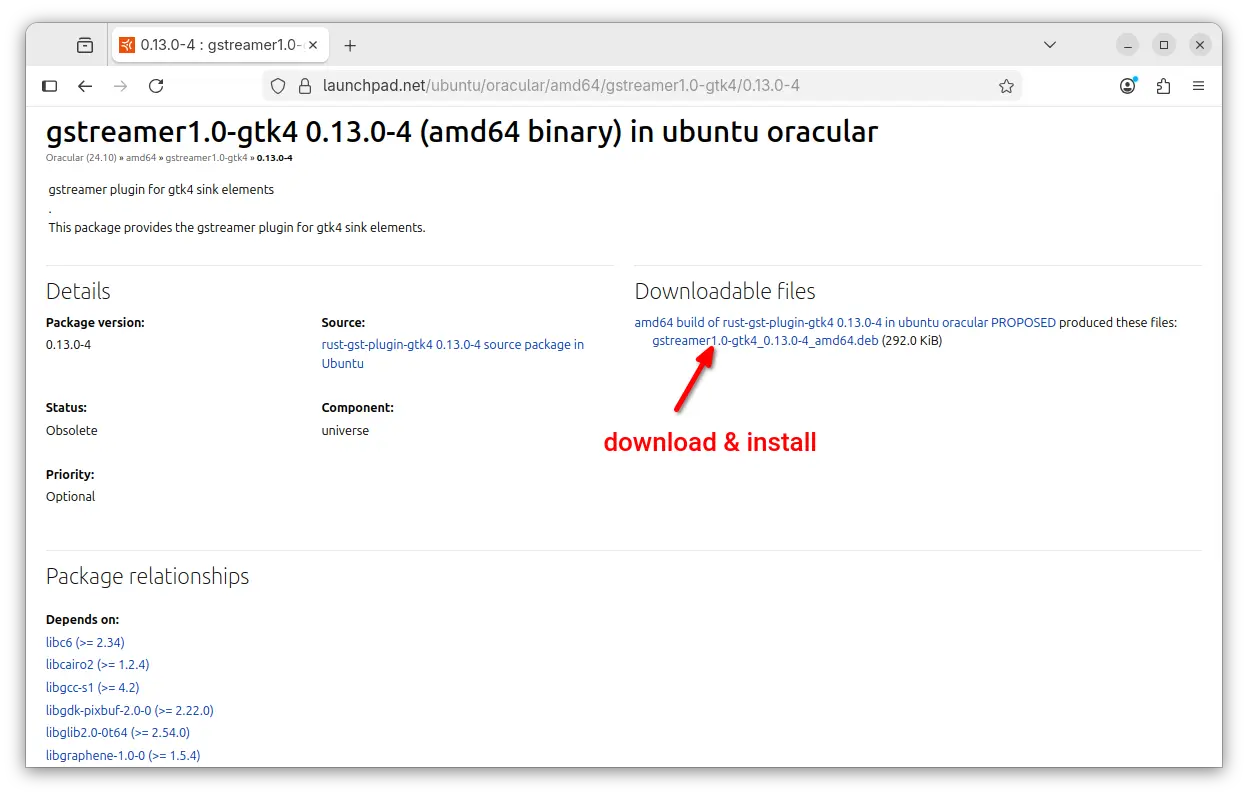
For Ubuntu 24.04, the GTK4 plugin is not available in system repository, you may select download the one for Ubuntu 24.10, then click open and install via App Center.
2. Install Extension Manager. I prefer to use Extension Manager app to install & manage Gnome extensions. For Ubuntu, it’s available to install in App Center (filtered by Debian package).
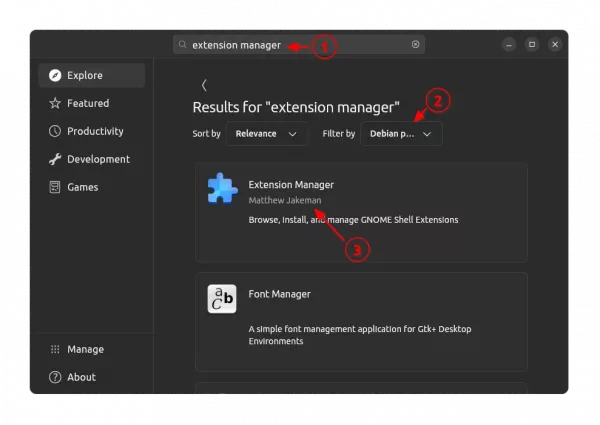
Install Extension Manager in Ubuntu Software/App Center
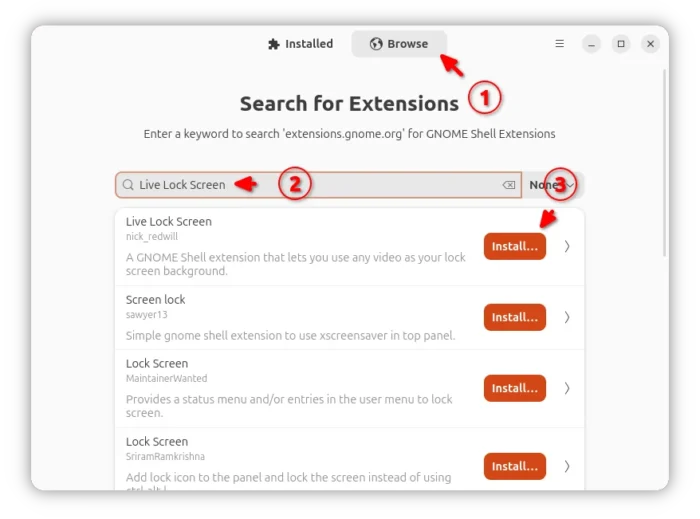
3. Finally, search and install the “Live Lock Screen” extension using Extension Manager under browse tab.
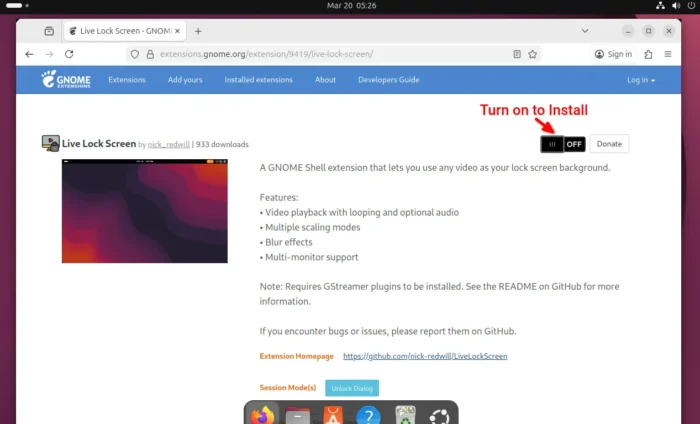
For choice, you may go to the extension page in Gnome website, then use the ON/OFF toggle to install it, after installed the browser extension and refresh.
Tips: Debian and Ubuntu also need to install the agent package before being able to use web browser to install Gnome Extensions:
sudo apt install chrome-gnome-shell
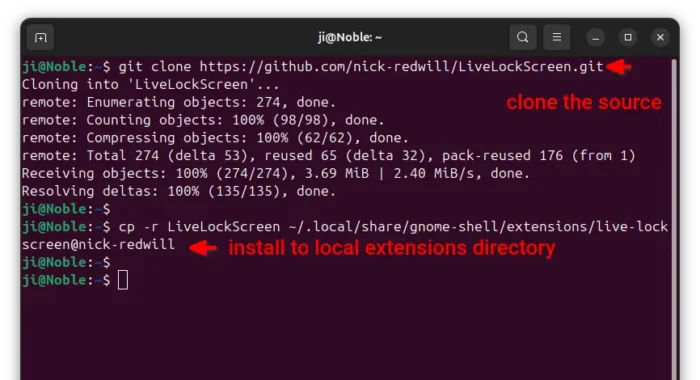
For Ubuntu 24.04 with GNOME 46, after installed the dependency libraries mentioned above, open terminal (Ctrl+Alt+T) and run the commands below one by one to install the extension from source:
- First, run the command to clone the source:
git clone https://github.com/nick-redwill/LiveLockScreen.git
Install git via
sudo apt install gitif you don’t have it. - Next, copy the source folder to local extension directory:
cp -r LiveLockScreen ~/.local/share/gnome-shell/extensions/live-lockscreen@nick-redwill
If this is the first time you install an extension for your Gnome desktop, then you may need to first create that directory by running
mkdir -p ~/.local/share/gnome-shell/extensionscommand. - Finally, log out and back in to apply change. And, clean by removing the source folder in user home.
2. Configure Lock Screen Video Wallpaper
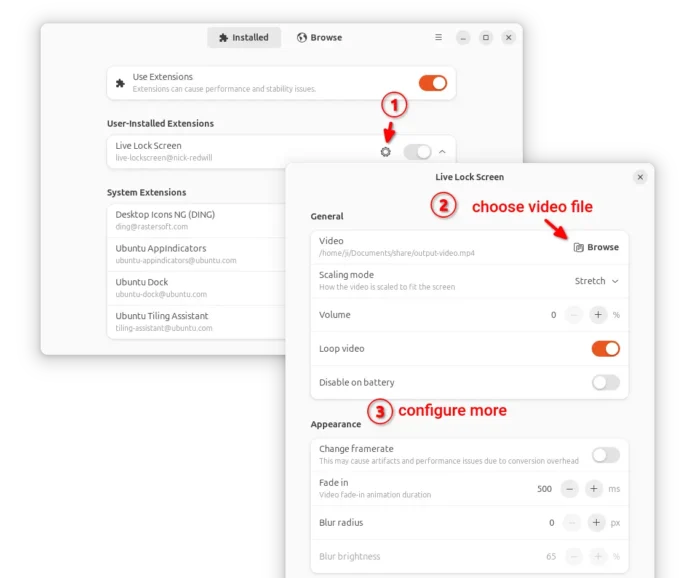
After installed the extension, launch either “Extension Manager” or Gnome Extensions app, then turn on that extension and click the gear icon to open its preferences dialog.
Next, choose a local video file, configure scaling mode, loop or not, and other settings, and finally lock screen to see the magic!
source https://ubuntuhandbook.org/index.php/2026/03/play-a-video-as-lock-screen-wallpaper-in-ubuntu-gnome/


Tidak ada komentar:
Posting Komentar