
Want a Howdy alternative application for Windows Hello style facial authentication? Biopass is another one for your Linux Desktop.
I’ve written about how to enable facial authentication using Howdy in Ubuntu. The project however has not been updated for more than a year. And, the installation and setup are not friendly for beginners.
There are a few Howdy alternative projects that were born with graphical user interface to make things simple for beginners. And, Biopass is the one I’m going to introduce in this post.
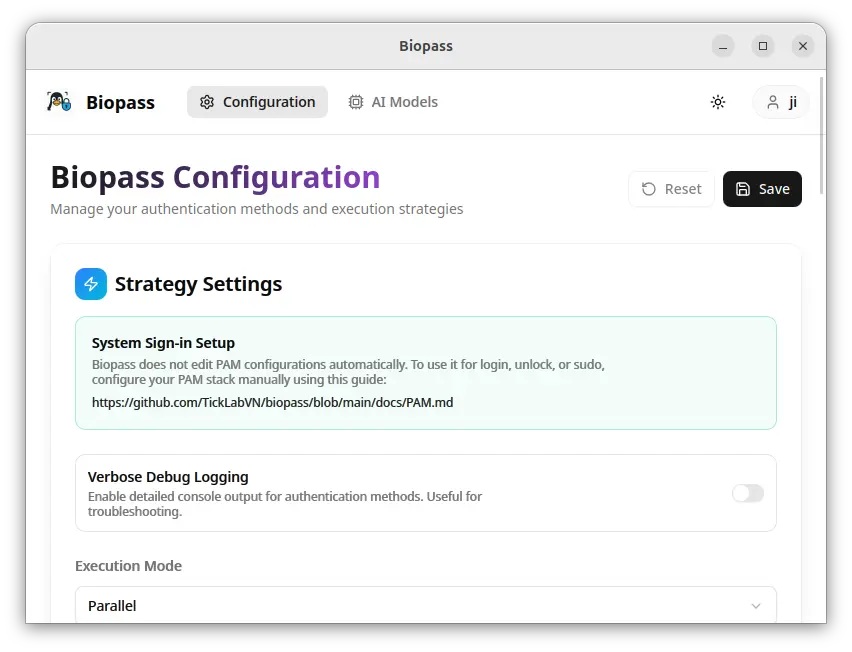
Biopass user interface
Biopass is a free open-source application that supports using your face or fingerprint to authenticate when you’re logging to your Linux system, launching applications or running something that requires user authentication.
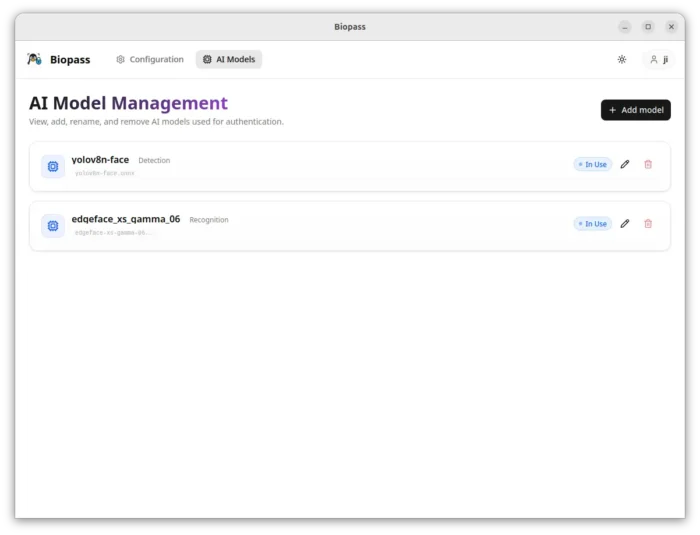
It uses AI models to locate human face in camera captured image/video and identify if it’s you by comparing the saved faces. It also supports using AI to determine whether a face in front of the camera is a real 3D human face or a fake presentation, such as photo, video replay, or mask.
The app by default uses the open-source EdgeFace model for face recognition, YOLO-Face model for face detection, and minifas for anti-spoofing. While, user has the choose to use other ONNX AI models instead.
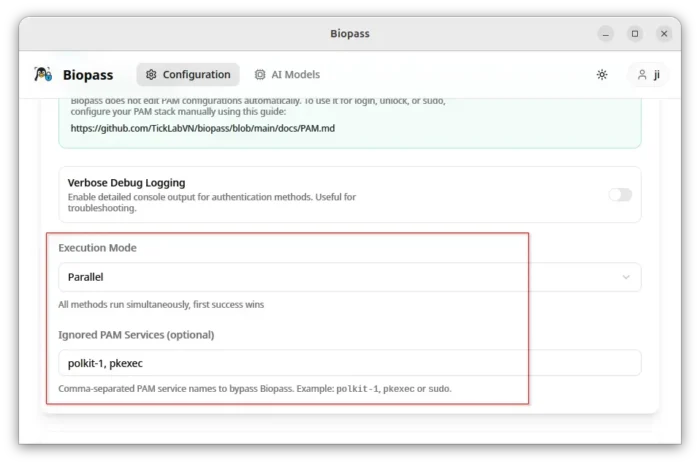
It uses PAM (Pluggable Authentication Module) library to manage user authentication. It supports using either sequential method that tries the supported authentication (facial and fingerprint) in order until one succeeds, or parallel mode that can authentication in both ways at the same time while first success wins.
And, it supports bypassing some PAM services, such as sudo and pkexec. In which cases, it won’t trigger your camera or fingerprint, instead using other authentication methods, such as password.
Other features include graphical options for max retries and retry delay, IR camera anti-spoofing, multiple biometrics, and interactive polkit authentication support.
How to Install Biopass
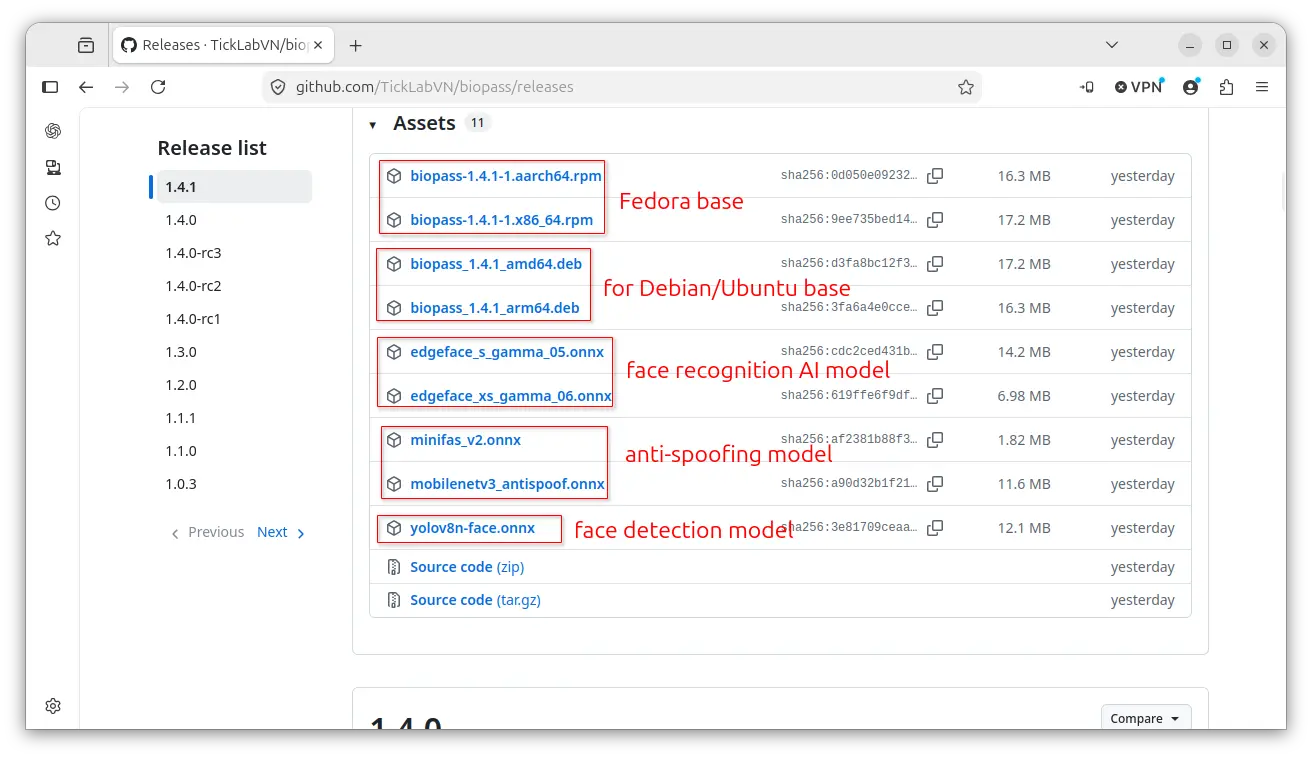
Biopass provides official installer packages which are available to download in the Github releases page:
Select amd64 or x86_64 for modern Intel/AMD platform, arm64 or aarch64 for Snapdragon X or Raspberry Pi etc ARM64 devices, .deb for Debian/Ubuntu, or .rpm for Fedora/RHEL based distributions.
Also download the AI models if you don’t have your own alternatives. For Ubuntu, the .deb (v1.4.1) requires 26.04 and higher due to dependency library.
After downloaded the installer, click open with your system package manager (e.g., App Center, GNOME Software) then install.
Finally, search for and launch the application from your system app launcher or GNOME overview.
When it opens, switch “AI models” tab to add your ONNX models, then switch back to “Configuration” tab to enable and configure facial authentication.
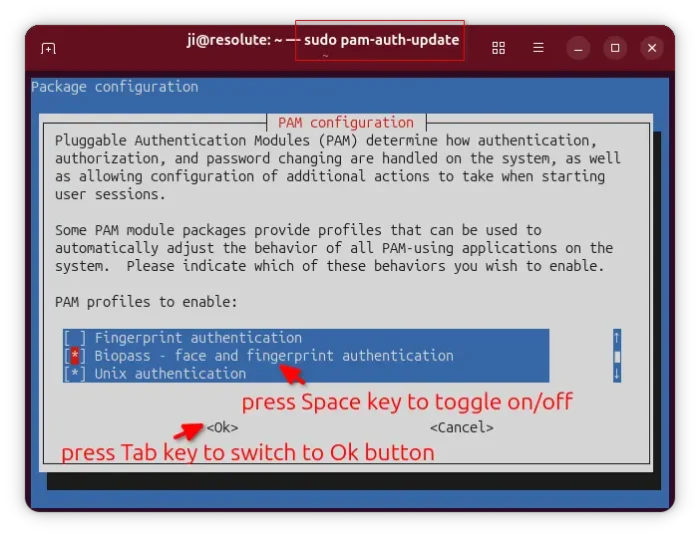
After saved your configurations, open terminal (Ctrl+Alt+T) and run command sudo pam-auth-update and enable Biopass authentication. Use Space key to toggle on/off selected PAM profile, and press Tab key to switch to Ok button.
source https://ubuntuhandbook.org/index.php/2026/07/biopass-another-windows-hello-linux/


Tidak ada komentar:
Posting Komentar